Rules
Say what your data must be, find every value that breaks it, and catch a bad value before it is applied or shipped in a build.
Documentation pages
A rule says what a column’s values must be: not empty, within a range, unique, or matching a pattern. Athena Asset Tables marks every cell that breaks a rule, asks before applying a change that would break one, and can check every rule in the project before a build.
Write a rule
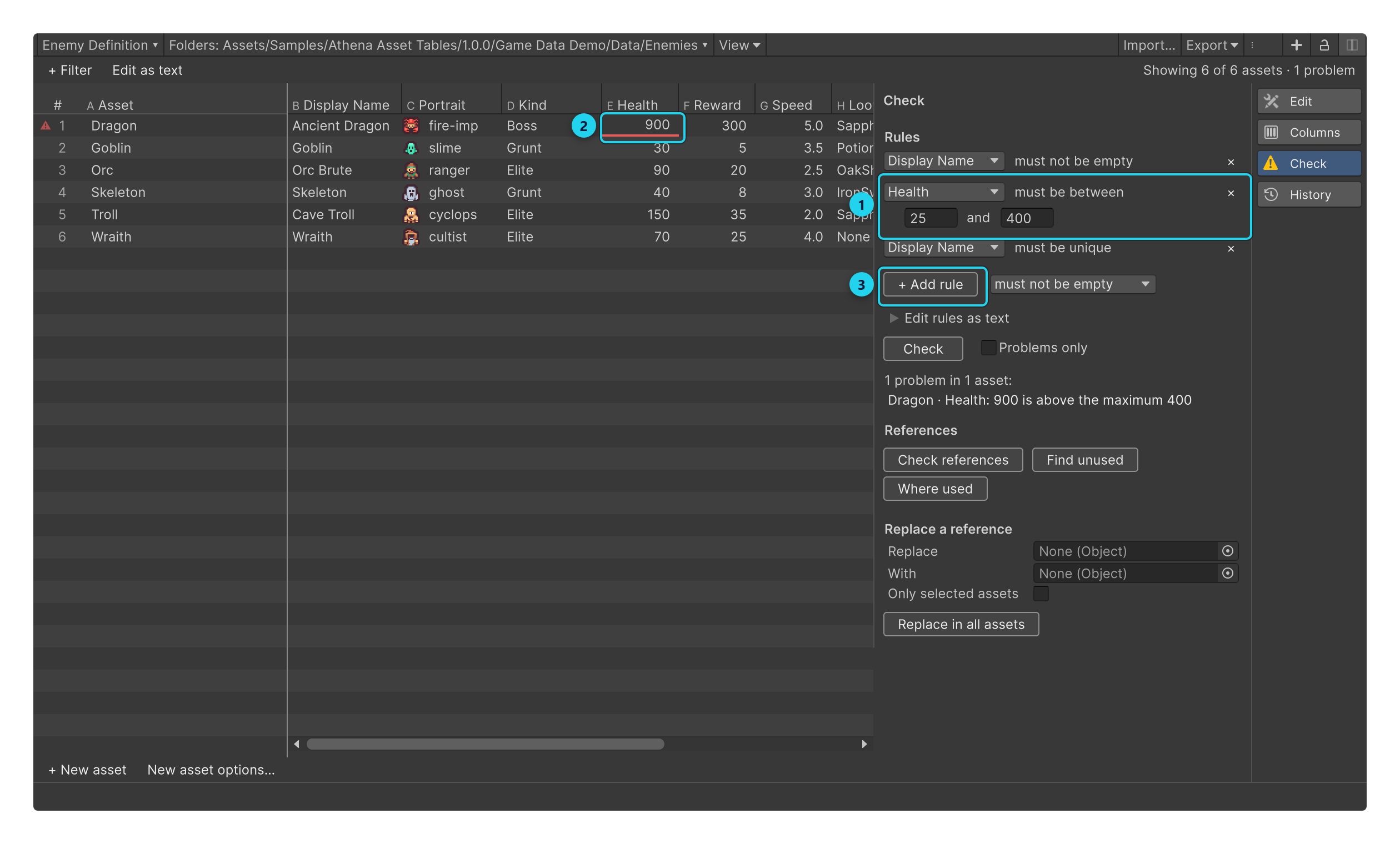
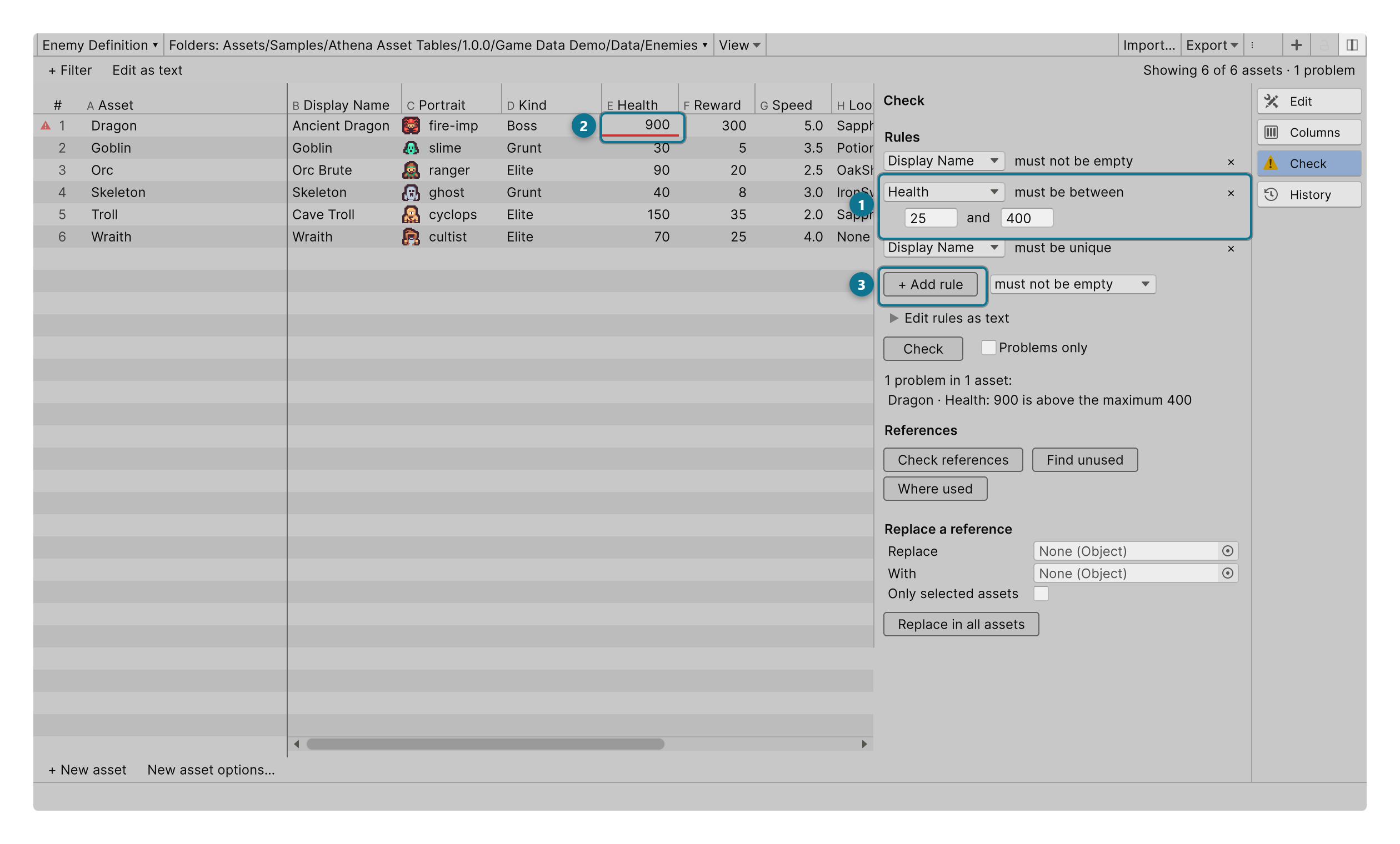
Open the Check section and click + Add rule. A rule reads as a sentence; choose the column and fill in the blanks:
| The rule | What it asks |
|---|---|
| Display Name must not be empty | No blank text, no unset reference, no empty list |
| Health must be between 25 and 400 | A number in that range; leave one end as * for no limit |
| Item ID must be unique | No two rows hold the same value |
| Display Name must match ^[A-Z] | The text matches a regular expression |
A range rule on a list of numbers, or a pattern on a list of text, checks every element of the list.
Click Check to check the table. Each cell that breaks a rule is marked, the rows are marked on the table’s scroll bar so you can find them among thousands, and the section lists every problem. Problems only narrows the table to the rows that break a rule. The same list shows references that point at an asset that no longer exists.
The rules are part of the table’s view: save the view, and everyone who opens it has the same rules.
Rules as text
Edit rules as text shows the rules one per line, which is quicker for many at once:
required displayName
range health 25 400
range speed 0.5 *
unique itemId
pattern displayName "^[A-Z]"
A line starting with # is a comment.
When a change breaks a rule
Rules never stop you typing a value. A value that breaks a rule is staged like any other, and marked. When you apply, Athena Asset Tables asks once, listing the changes that break a rule: Apply anyway, or Cancel to fix them first.
Problems already in your data never stop an unrelated change: you can edit a row’s speed while its health is still out of range.
References
The References group on the same tab looks after the links between assets:
- Check references lists every reference in the table that points at an asset that no longer exists. Their cells read Missing.
- Find unused lists the rows that nothing else in the project points at, which are often leftovers.
- Where used lists every asset that points at the selected row, before you change or delete it.
- Replace a reference turns every reference to one asset into a reference to another: choose them under Replace and With, then Replace in all assets (or tick Only selected assets). The changes are staged, and only an asset of the field’s type is accepted.
Rules in your scripts
A rule can live on the field itself, so every table of that type has it without anyone writing it:
using StackBlender.DataWorkbench;
using UnityEngine;

public class EnemyDefinition : ScriptableObject
{
    [AthenaRule("required")] public string displayName;
    [AthenaRule("range 1 *")] public int health;
    [AthenaRule("unique")] public string enemyId;
}
Write the rule as you would in the Rules box, without the field’s name. Unity’s own [Range] and [Min]
count as rules too, and a field’s [Tooltip] becomes its column’s help. A rule written wrongly shows as a
warning in the Console after Unity compiles, naming the field.
[AthenaRule] holds text and does nothing at run time; a player build carries only the attribute’s tiny
assembly.
Check before a build
Edit › Preferences › Athena › Asset Tables › Check data before a build checks every saved view’s rules, every
[AthenaRule], and every reference to a deleted asset across the project whenever you build a player:
- Warn in the console (build goes on), the default, lists the problems and builds anyway;
- Stop the build fails the build while any problem remains;
- Off skips the check.
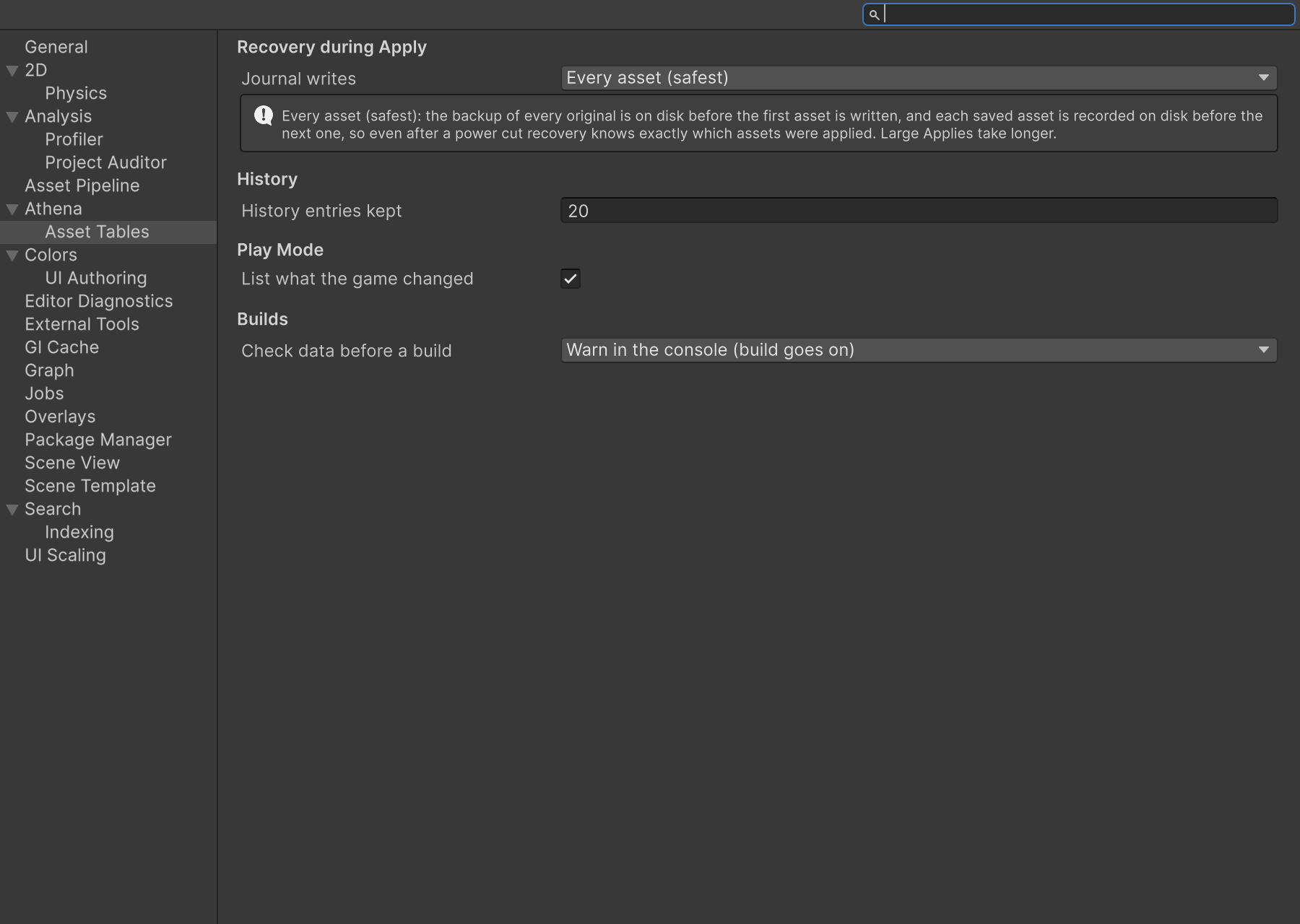
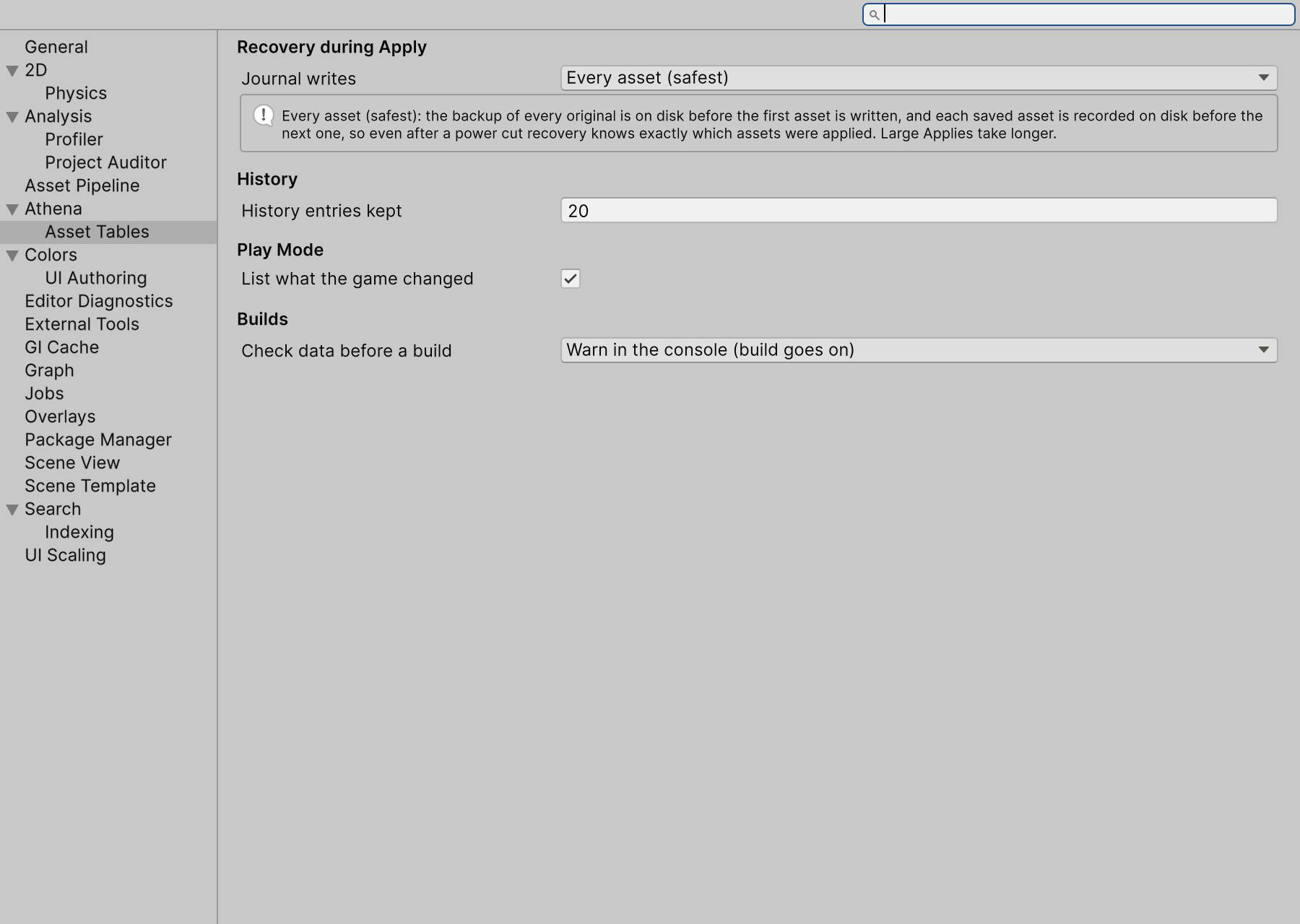
The setting is yours alone, kept in your user settings for this project.
Check in CI
The same check runs from the command line, for a build server:
Unity -batchmode -projectPath <project> \
  -executeMethod StackBlender.DataWorkbench.Editor.Unity.DataCheck.RunFromCommandLine \
  -dataWorkbenchReport report.json
It writes every problem to report.json and exits with 0 when the data is clean, 1 when it has
problems, and 2 when it could not run. Keep the report outside the project’s Temp folder, which Unity
clears.