Getting started
Install Athena Asset Tables, open the demo data, and make, apply and undo your first edit. About five minutes.
Documentation pages
Athena Asset Tables is coming soon to the Unity Asset Store. This guide describes the release being prepared.
Before you start
You need Unity 6000.0.85f1 or later and a project to try Athena Asset Tables in. Check the compatibility notes for verified editor and operating-system combinations and their limitations. Your own project is fine: Athena Asset Tables changes nothing until you apply a change, and every change it applies can be undone. A new, empty project works too, and the demo data fills it.
Install
- Add Athena Asset Tables to your assets on its Unity Asset Store page.
- In Unity, open Window › Package Manager, choose My Assets, select Athena Asset Tables, and click Download, then Install.
Athena Asset Tables is an editor tool. It adds a window to the editor and nothing that runs in your game: a player build gains only a tiny assembly holding two attribute classes.
Open Athena Asset Tables
Choose Tools › Athena › Asset Tables. You can also right-click an asset, a script or a folder in the Project window and choose Open in Asset Tables, which opens the table for exactly that.
The first time, in a project with no data of its own, Athena Asset Tables offers its demo:
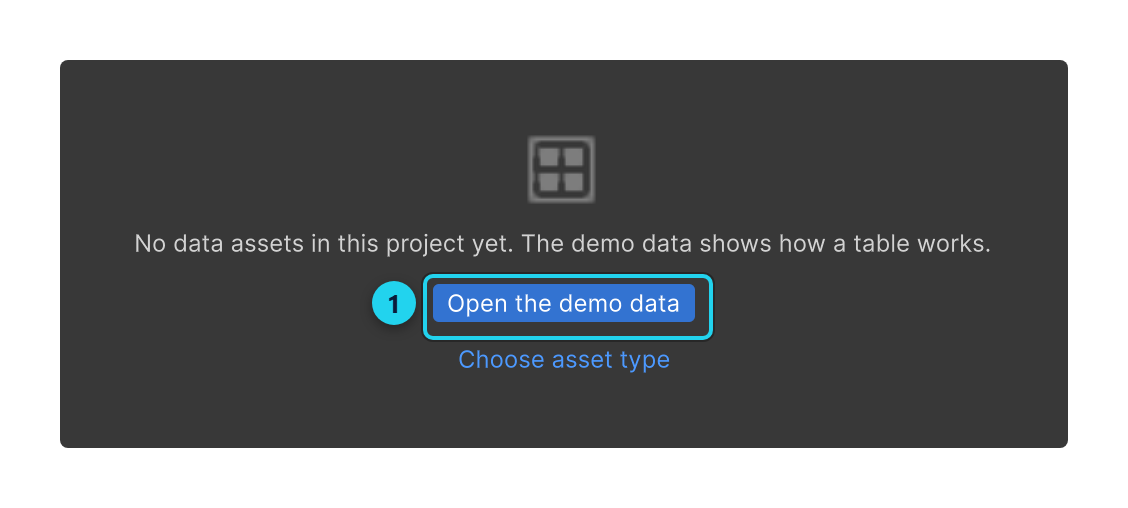
Click Open the demo data. Athena Asset Tables imports the Game Data Demo sample into Assets/Samples, the same as
importing it from the Package Manager’s Samples tab, and asks which of the sample’s three kinds of
data to open:


In a project that already has data, the first screen lists your own data types instead, with the demo as a link beneath them.
The table
Choose the enemies. Each row is one enemy asset and each column one of its fields, read straight from the assets on disk.
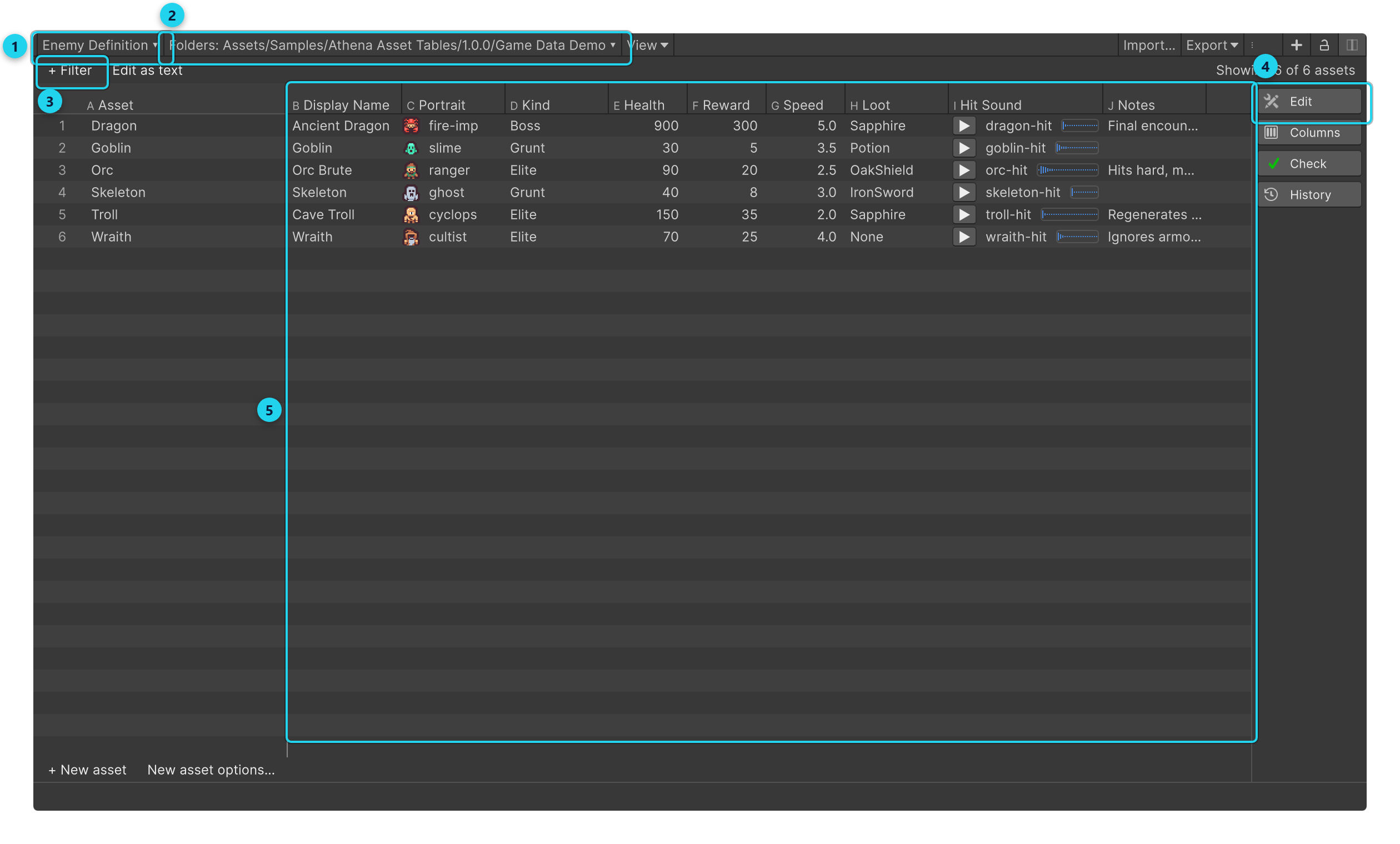
- The type of asset the table shows. Click it to choose another.
- The folders it looks in.
- The filter, which narrows the rows. + Filter builds one a condition at a time; Edit as text
lets you type one, such as
kind = Elite. - The sections: Edit for changes to many rows at once, Columns, Check for rules your data must follow, and History for every change you have applied.
- The rows. Click a column’s heading to sort by it.
Make an edit
Double-click a cell, type a new value, and press Enter. The cell shows the old value struck through beside the new one: the change is pending. Nothing is written to your assets yet, and you can keep editing other cells; they wait together.
Apply it
The bar at the bottom of the window counts what is waiting. When you’re ready, click its button (Apply 1 change here) and Athena Asset Tables writes every pending change in one step.
Before anything is written, Athena Asset Tables keeps a copy of every file it is about to change. If Unity stops in the middle of an Apply, the next time you open the project Athena Asset Tables offers to put every file back exactly as it was.
Undo it
Press Ctrl+Z, or choose Edit › Undo. One Undo takes back everything that Apply wrote, however many assets it changed.
Next steps
You have used the core of Athena Asset Tables: a table of your data, edits that wait until you apply them, and an undo for every apply. The overview lists everything else it does.