Undo, history and recovery
Take back a change before you apply it, undo or revert an Apply afterwards, keep named snapshots of a table, and get every file back if Unity stops in the middle of writing.
Documentation pages
Athena Asset Tables is built so that no change to your data is a leap. Changes wait until you apply them, every Apply can be taken back, and an Apply that is cut off halfway, by a crash or a power cut, can be put back exactly as it was.
Before you apply
Everything you do in the table waits in the pending bar at the bottom of the window, which counts it:
9 changes to 9 assets · not applied yet.
- Undo in the bar, or Ctrl+Z in the table, takes back the last step: a cell, a paste, a recipe, a new or deleted asset, a moved column.
- Discard drops everything pending. Right after it, the bar offers Undo discard.
- Review lists every change with its old and new values whole, grouped by asset. Click a line to go to its cell, and Take back to drop that one change.
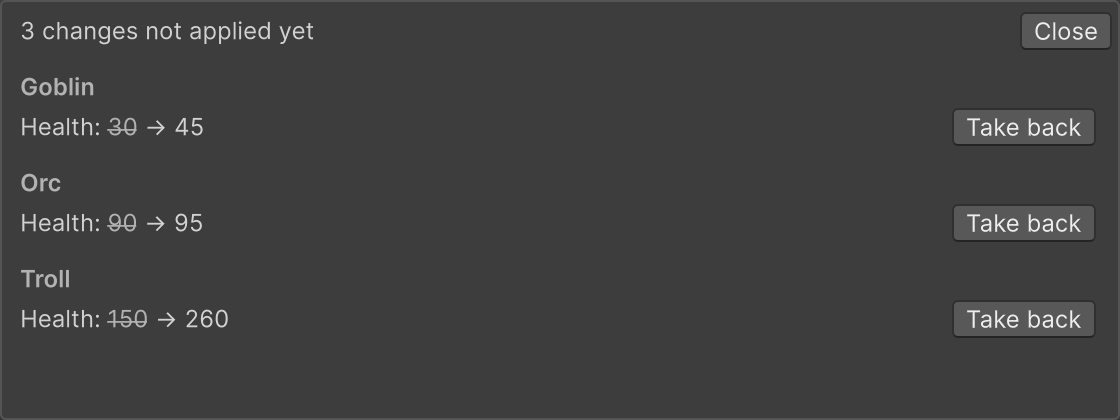
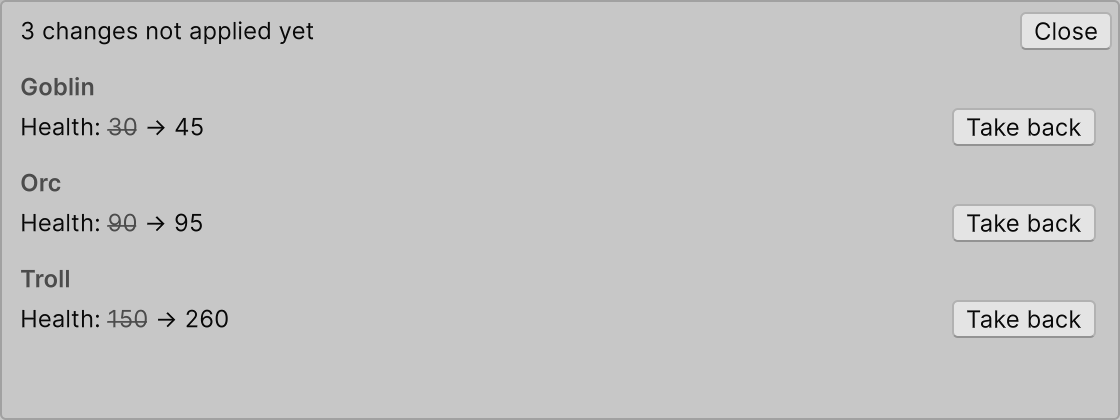
Nothing in the pending bar has touched a file yet, so closing the window or switching tables asks first, and never drops your work silently.
Apply
Click the pending bar’s Apply button, or press Ctrl+Enter (⌘+Enter on a Mac). The shortcut is Athena › Asset Tables › Apply in Edit › Shortcuts, if you would rather another key.
When you apply, Athena Asset Tables:
- checks that no file has changed since you staged your edits, and stops, naming the asset, if one has;
- copies every file it is about to change into its recovery journal, and makes sure the copy is on disk;
- writes the changes, and saves only the assets it changed, leaving any other unsaved work in the project alone;
- checks every value it wrote, and puts everything back if your own code (an
OnValidate) changed one.
An Apply that takes more than half a second shows its progress with a Cancel button. Cancelling puts every file it had written back byte for byte and keeps your changes pending, to apply again later.
Undo an Apply
Press Ctrl+Z or choose Edit › Undo. One Undo takes back the values the whole Apply wrote, however many assets it changed, and Edit › Redo puts them back.
Unity’s Undo only lasts as long as the editor is open, and does not cover new, duplicated or deleted assets or script changes. The History tab does.
History
The History tab lists every Apply to this table, newest first, and counts those to other tables.
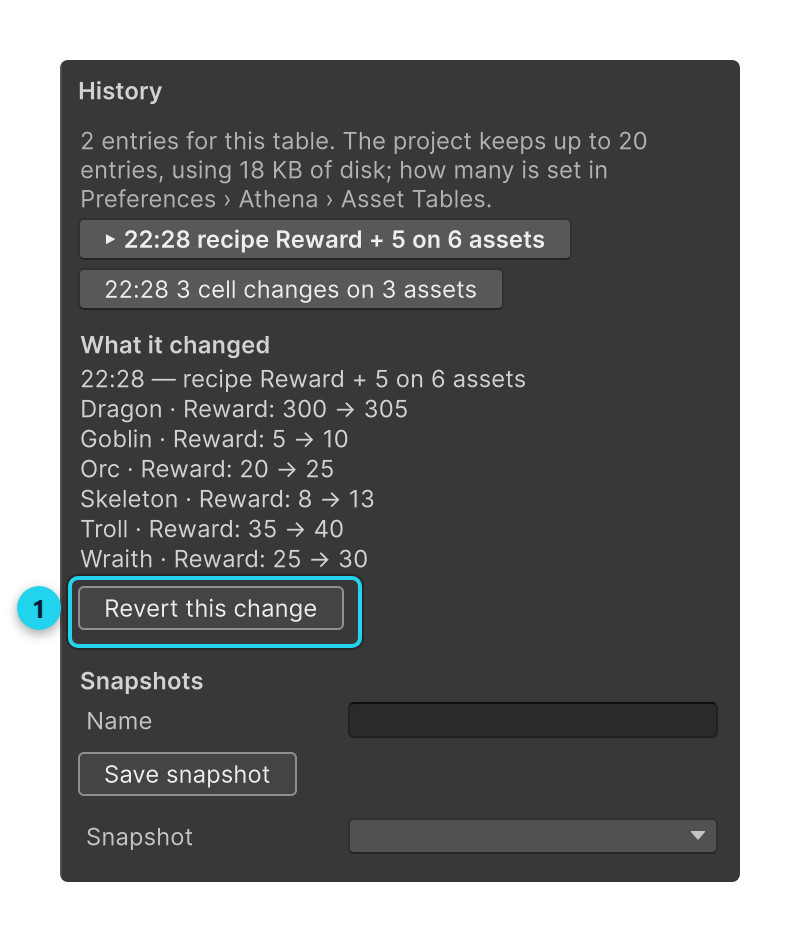
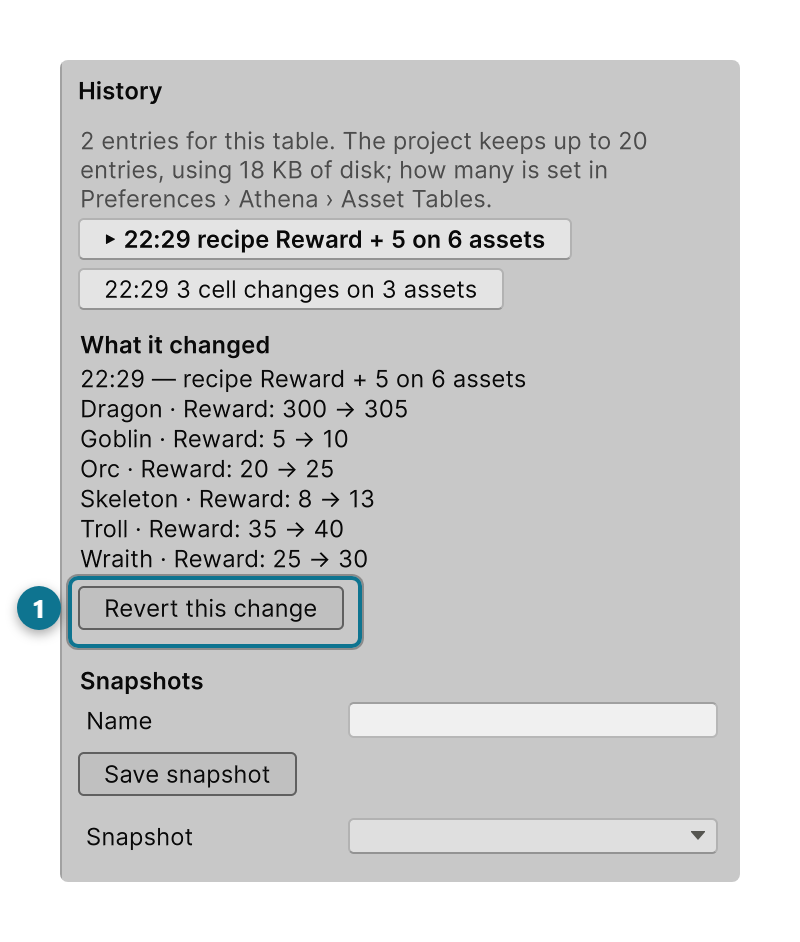
Select an entry to see What it changed: each asset and value, before and after. Revert this change puts every file that Apply changed back as it was before it, now, including assets it created (removed) or deleted (restored with the same GUIDs). It asks first, and it refuses if any of those files has changed since, so it never overwrites later work. A revert is listed in History too, and Undo this revert brings the change back.
History survives restarting Unity. The project keeps the last 20 Applies by default; change it with History entries kept in Edit › Preferences › Athena › Asset Tables. Each kept entry holds a copy of the files it changed, and the tab says how much disk they use.
Snapshots
A snapshot keeps a table’s values under a name, such as “Before balance pass”, so you can compare with it or go back to it later, however many Applies come between.
Under Snapshots on the History tab:
- Type a Name and click Save snapshot. Nothing in the project changes.
- Choose one under Snapshot and click Compare to list every value that differs from the table now.
- Restore… stages the snapshot’s values as pending changes, for you to review and apply like any other.
Snapshots appear in the History list at the time they were taken. They are files in the
AthenaSnapshots folder at the root of your project, outside Assets, so Unity never imports them,
and you can commit them to share a restore point with your team.
If Unity stops during an Apply
If the editor crashes, is killed, or the machine loses power in the middle of an Apply, some files may hold the new values and some the old. The next time you open the project, Athena Asset Tables says which Apply was interrupted and when, marks its assets in the table, and offers to put them back.
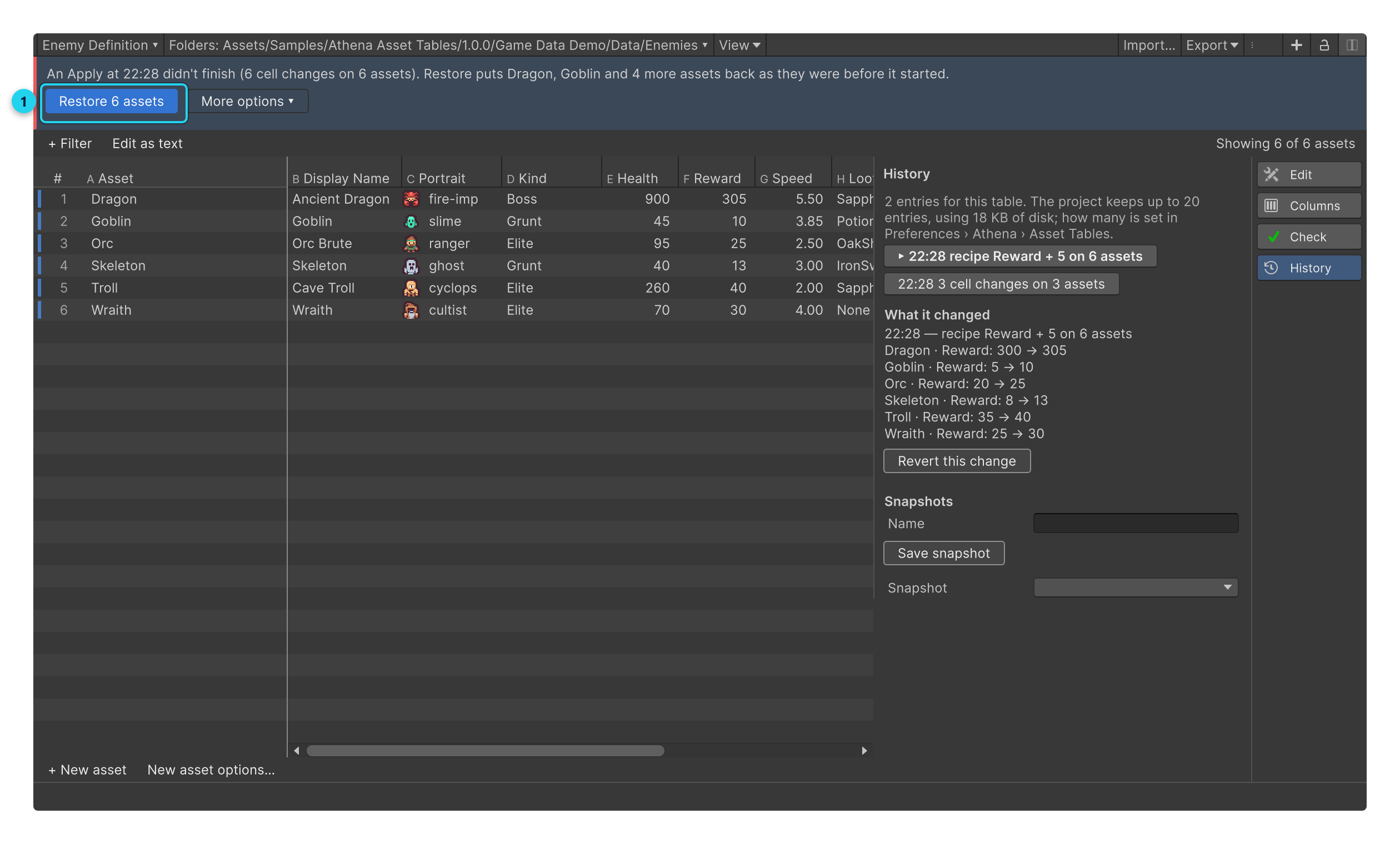
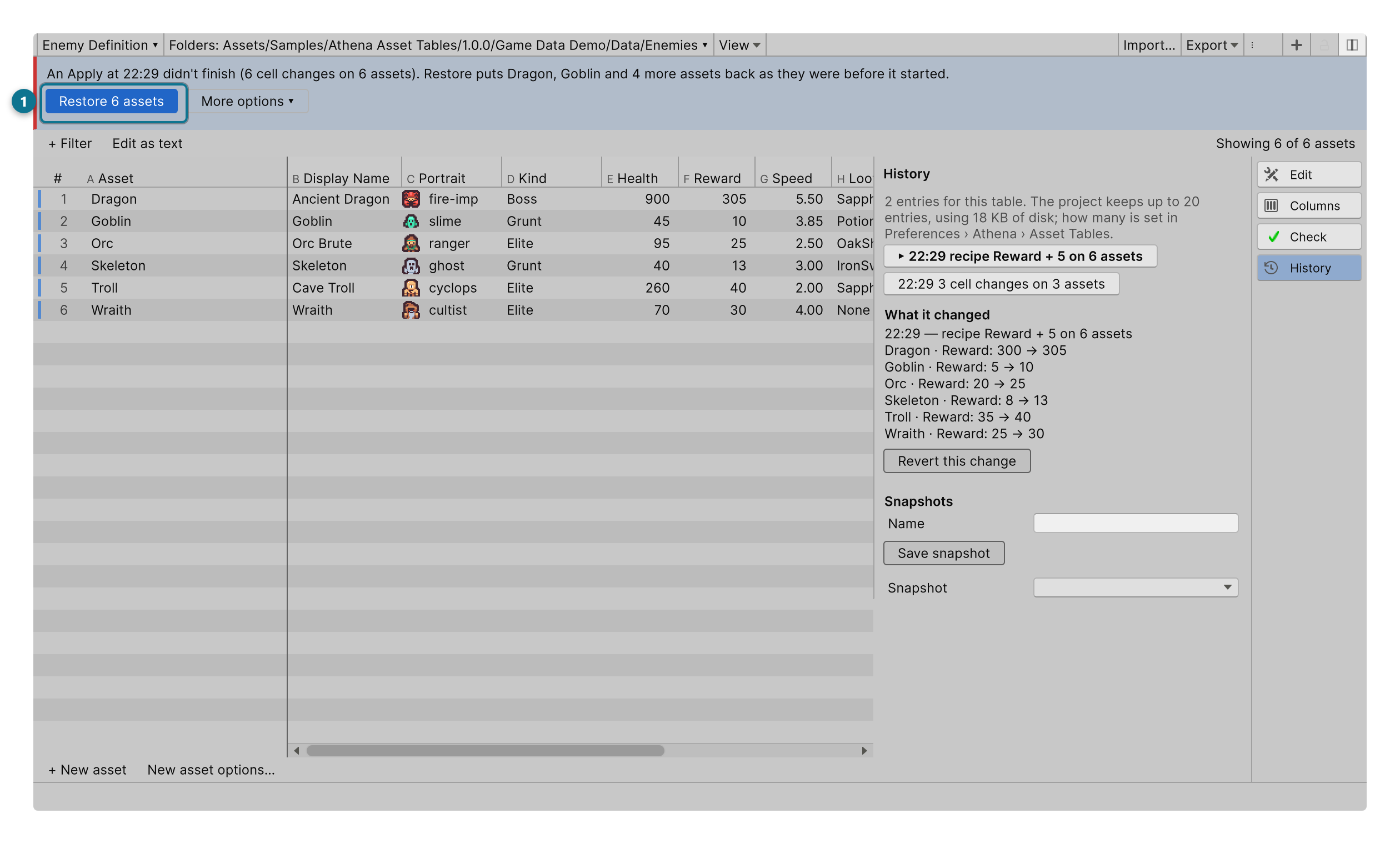
- Restore 6 assets (it counts them) puts every file back exactly as it was before the Apply, byte for byte. If any of them was edited after the interruption, it cannot be sure what to keep, so it greys out and the other choices open for you to decide.
- More options ▾ has the rest:
- Restore only assets without later edits restores the others and leaves the edited ones alone.
- Keep the assets as they are closes the interrupted Apply without changing anything.
- Restore all, discarding later edits puts every file back, including the edited ones. It asks first, since those later edits are lost.
How carefully the journal writes
Edit › Preferences › Athena › Asset Tables › Journal writes chooses between safety and speed:
- Every asset (safest), the default: the copy of every original is on disk before the first asset is written, and each saved asset is recorded before the next one. Recovery is exact even after a power cut.
- Grouped (faster): records reach the disk every 64 assets and before the Apply finishes. An editor crash still loses nothing; after a power cut, up to 64 assets may be listed for you to restore or keep. Grouping reduces journal flushes during large Applies.
The setting is yours alone, kept in your user settings for this project.