Copy and paste
Copy cells and rows to a spreadsheet, paste blocks back into the table as pending edits, fill down and fill right, and paste rows that say which asset they are for.
Documentation pages
The table copies and pastes like a spreadsheet. A paste is never written straight to your assets: every cell it changes is staged as a pending edit, shown beside its old value, until you apply it.
Select cells
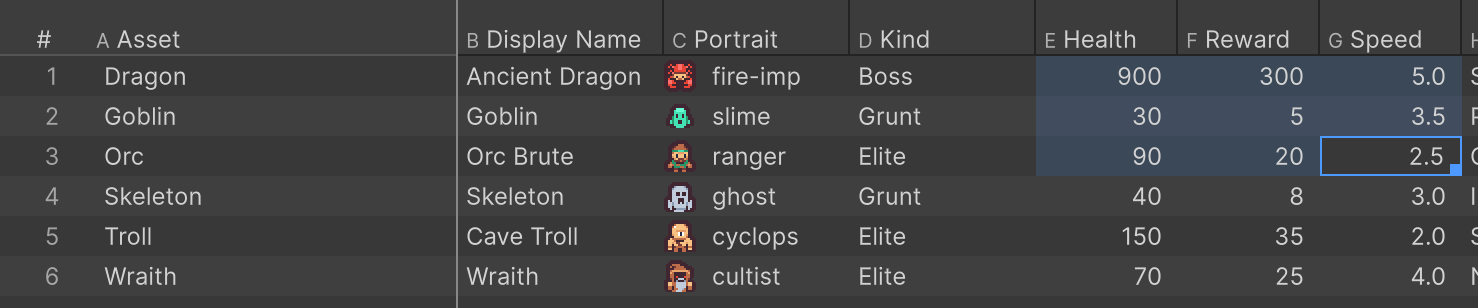
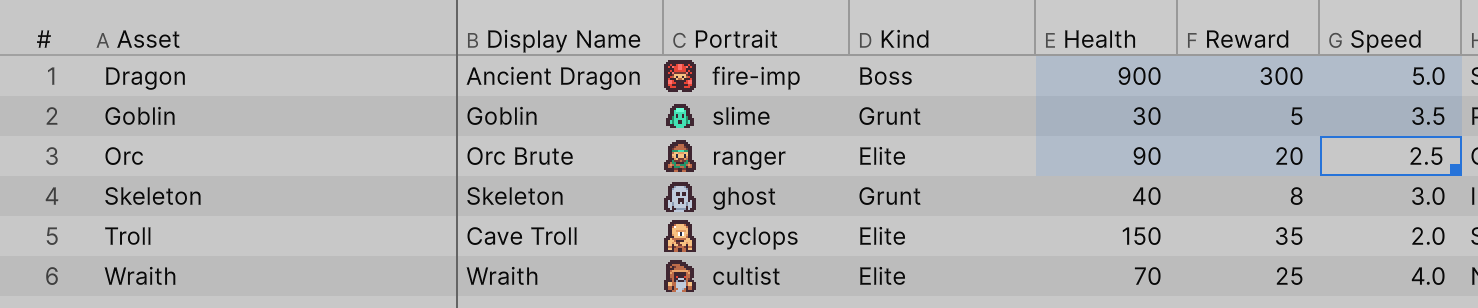
Click a cell to make it the active cell. Shift-click another cell to select the range between them, or click a row’s number to select the whole row. You can also press on a cell and drag: the cells between where you pressed and where you are now are selected, in any direction, and the Asset column is part of it. Shift-click works from the Asset column too. Ctrl+A selects every cell of every shown row, and Esc clears the selection. Clicking a cell replaces whatever was selected, and the count in the status line follows.
Copy
Ctrl+C copies what is selected:
- a range of cells copies as tab-separated rows, which paste into Excel or Google Sheets as cells;
- several selected rows copy with a header row, every shown column and a
GUIDcolumn, so a spreadsheet keeps track of which asset each row is; - otherwise the active cell copies alone.
A copied value is written so it pastes back exactly: a reference copies as the asset it points at, not as its name, so pasting it into another cell sets the same asset.
Paste
Select where the block should land and press Ctrl+V. When the clipboard holds cells and one
cell is active, the status line says where the paste will land, such as
Ctrl+V pastes 8×4 starting at Dragon / Health.
- The block’s columns start at the active cell’s column and run to the right.
- Its rows land on the selected rows, in the table’s order. With one row selected and several rows on the clipboard, the paste carries on down the table from that row, as a spreadsheet does.
- One copied row pasted onto many selected rows fills them all.
- A block copied from the Asset column rightwards, or one whose header has an
Assetcolumn, lands each row on the asset it names, wherever you paste it. Names alone pasted on an Asset cell rename that row and the ones below it. - A blank cell in the block clears the field it lands on.
- Each value is read the way a typed one is: a number must be a number, a choice must be one of its options. A value that cannot be read stops the whole paste and says which cell, so a paste is never half done.
When the first row of the block names columns the table shows, such as a header copied with the data, the
columns are matched by name instead of by position. A header with an Asset column goes further: each row
is pasted onto the asset it names, wherever that asset is in the table, so rows copied from a sorted
spreadsheet still land on the right assets.
From a spreadsheet
Copy cells in Excel or Google Sheets and paste them into the table. Athena Asset Tables reads what spreadsheets put on the clipboard, including cells with line breaks or quotes in them. Blank lines between rows, which some clipboard-sharing tools add, are skipped; a row of empty cells still clears what it covers.
Fill down and fill right
Select a range and press Ctrl+D to copy the range’s first row into every row below it, or Ctrl+R to copy its first column into every column to its right. The filled cells are pending, like any other edit.
Clear
Delete or Backspace clears the selected cells: numbers to 0, text to empty, true or false to false, and references to None. The clear is pending until you apply it.
Take a step back
While changes are pending, Ctrl+Z takes back the last paste, fill or edit, one step at a time, before anything is written. Once you have applied, the same key is Unity’s Undo, which takes back the whole Apply.